
Icom Audio Player overview
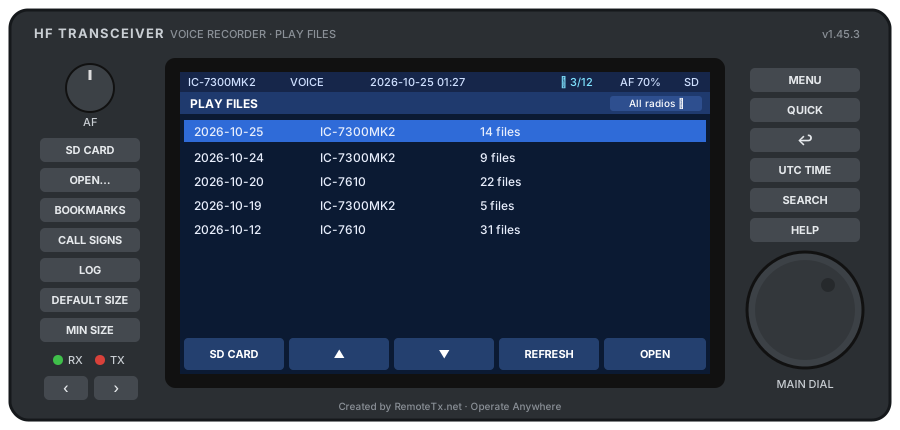
RemoteTx Icom Audio Player is a desktop app for Windows and macOS that browses and plays the TX/RX voice recordings an Icom radio saves to its SD card. It looks and works like the radio's own PLAY FILES screen, with an AF knob, a MAIN DIAL and MENU / QUICK / EXIT keys, and adds what the radio can't do: search across every recording, bookmarks, offline speech-to-text, CW decoding, a list of the call signs heard, and a link from each QSO in your log to the audio recorded around it.
What it works with#
| Radio | What it records | What the player shows |
|---|---|---|
| IC-7300, IC-7300MK2 and similar single-receiver radios | 8 kHz, 16-bit mono | RX/TX, frequency, mode, S-meter (RX) or power (TX), length, time |
| IC-7610 and other dual-receiver radios | 16 kHz stereo (MAIN left, SUB right) | All of the above, plus a MAIN / SUB line with the active band highlighted |
The radio stores recordings as IC-xxxx\Voice\YYYYMMDD\YYYYMMDD_HHMMSS.wav. The player reads the details the radio writes inside each file, so nothing has to be typed in. Recordings on the SD card are only ever read, never changed.
Quick start#
Set up the radio to record as you operate#
Most of the radio's recorder settings can be left at their defaults. The one to turn on is PTT Auto REC:
MENU › RECORD › Recorder Set › PTT Auto REC: ON
With it on:
- The recorder starts by itself when you transmit.
- As long as you stay on the same frequency, it keeps recording and starts a new file each time you switch between TX and RX, so each over is its own TX or RX recording.
- If you tune more than 1 kHz away, the recording stops. It starts again the next time you transmit.
Set the radio clock to UTC#
The radio stamps each recording with the time from its own clock. Set that clock to UTC, and keep it accurate (within a minute or so):
- MENU › SET › Time Set › Date/Time: enter the current UTC date and time, not your local time.
- MENU › SET › Time Set › UTC Offset: set it to ±0:00. The clock is already on UTC, so any other offset would make the radio's UTC display wrong.
Logging programs record QSO times in UTC, and the player matches the times in your imported logs against the times on the recordings. With the radio on UTC, ♪ AUDIO on the LOG screen finds the recordings for each QSO. If the clock is on local time or has drifted, the recordings will be hours or minutes away from the QSOs and won't be found.
Check the clock now and then against an accurate time source, as radio clocks drift. If your radio's clock has to stay on local time, set QUICK › Radio Clock Is to LOCAL in the player instead. See Times: UTC or local.
Make sure an SD card is in the radio. Then operate as usual and the recordings collect on the card.
Play the recordings#
- Install the player and start it.
- Copy the contents of the radio's SD card to a folder on your computer. Then press OPEN… (Ctrl+O) and pick that folder, or drag it onto the window. See Opening recordings.
- PLAY FILES lists the date folders, newest first. Turn the MAIN DIAL (or use ↑ ↓) and press Enter to open a folder, then again to play a file.
- Press AUTO to play the whole folder as one continuous QSO, or SEARCH to find recordings by frequency, date and mode across every folder.
The player remembers where you were. Close it in the middle of a recording and it reopens on the same file at the same point.