
The FT8 tab, part by part
This page walks through the FT8 tab from top to bottom. The numbers match the screenshot.
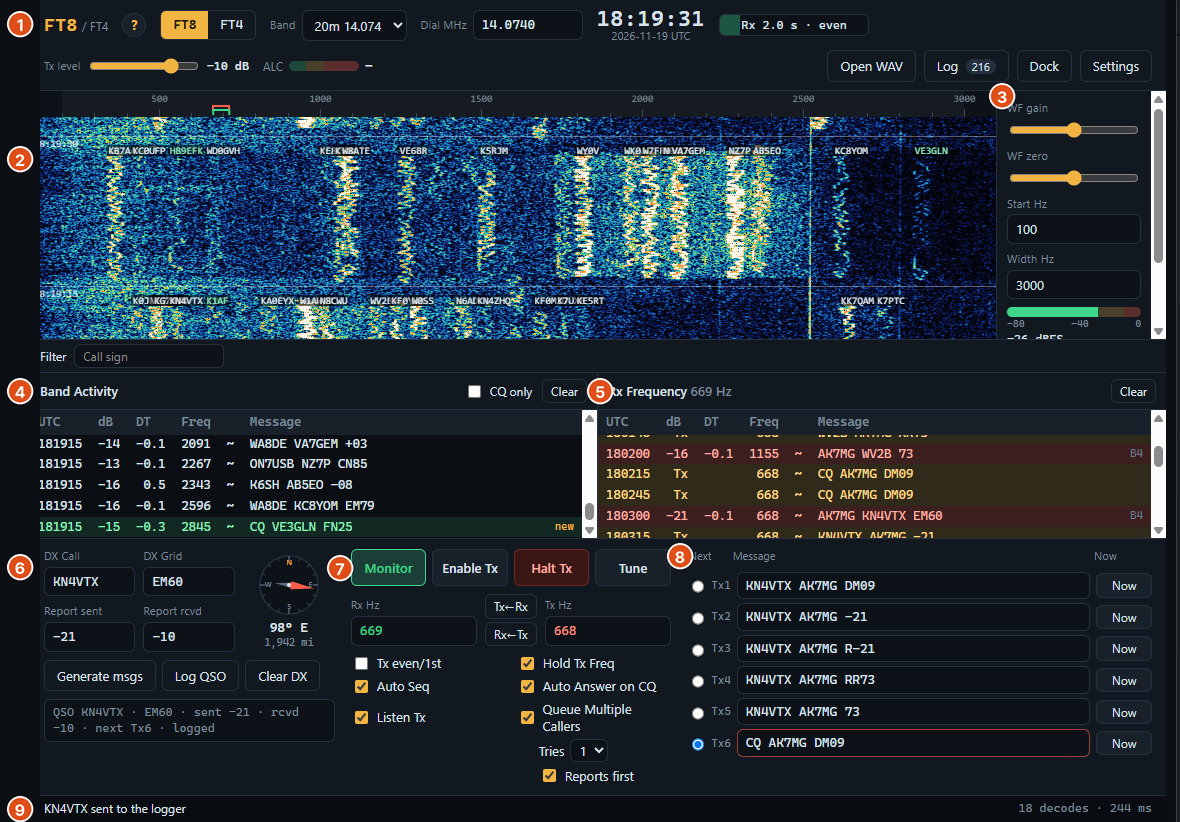
| # | Area | What it's for |
|---|---|---|
| 1 | Top bar | Mode, band, dial, UTC clock, period, Tx level and ALC, status, Log and Settings |
| 2 | Waterfall | Every signal in the passband; click to choose Rx (Left Mouse) and Tx (Right Mouse) frequencies |
| 3 | Waterfall controls and level meter | Waterfall display and receive level |
| 4 | Band Activity | All decodes, every period, and the call-sign filter |
| 5 | Rx Frequency | Decodes near your Rx frequency and your QSO |
| 6 | DX panel | The station you're working, reports, bearing |
| 7 | Main controls | Monitor, Enable Tx, Halt Tx, Tune, Rx/Tx Hz, options |
| 8 | Tx messages | The six standard messages |
| 9 | Status bar | What the client is doing right now |
1. Top bar#
| Item | What it does |
|---|---|
| FT8 / FT4 | Choose the mode. FT4 uses 7.5 s periods and different dial frequencies. |
| Band | Picks the band and its standard FT8 (or FT4) dial frequency, e.g. 20m 14.074. The radio follows (see Radio settings). |
| Dial MHz | The radio's dial frequency. Type a different one for a non-standard frequency. It also follows the radio's VFO when you tune on the Radio tab. |
| UTC clock | Time and date in UTC, from your computer's clock. |
| Period bar | Shows how far into the current period you are, and whether it's an even or odd period, receiving (Rx) or your transmit period (Tx slot). |
| Tx level | Your transmit audio level, in dB. See Tx level and ALC meter. |
| ALC | The radio's ALC meter while you transmit or tune. See Tx level and ALC meter. |
| Status chips | RX RemoteTx audio (receiving the radio audio), TX RemoteTx audio (transmit audio goes to the radio), PTT RemoteTX (TX/RX control works; shows ✕ if the radio isn't connected), Logger (when RTx EasyConnect is linked), and your call and grid (or No callsign). Green = OK, amber = check, red = not working. |
| Open WAV | Decode a recording. Useful for testing with no radio. |
| Log | Open the log. The badge shows how many QSOs it holds. |
| Pop out | Opens FT8 in its own window (always on top in Chrome/Edge), so you can use it next to the Radio tab. Monitoring and any QSO in progress carry on. Dock or closing the window puts it back. Desktop only. |
| Settings | Opens Settings. |
In a narrow window, the buttons move to a second line of the top bar.
Tx level and ALC meter#
The top bar has a transmit level control, so you can adjust it during a transmissions.

| Control | What it does |
|---|---|
| Tx level | Transmit audio level, from −50 to 0 dB (default −10 dB). Drag it, or hover over it and use the mouse wheel to set the value. It's the same setting as Tx level in Settings → Audio. |
| ALC | The radio's ALC meter; the same reading as the ALC meter on the Radio tab, shown while you transmit or Tune. |
The ALC bar changes colour as the reading rises:

| Colour | Reading (share of full scale) | What it means |
|---|---|---|
| Green | Under 25 % | Little or no ALC. Good, as long as the radio's power meter is at maximum (see below). |
| Amber | 25–50 % | You've gone past the full-power point. Lower the Tx level a few dB. |
| Red | 50 % and over | Well past it. Lower the Tx level until the bar is green again. |
Setting the level: maximum power, minimum ALC#
The right Tx level is the point where the radio's output power meter just reaches its maximum: the power you've set on the radio.
- Below that point, raising the Tx level raises the output power, and the ALC stays low.
- At that point, the radio is putting out full power. This is where you want to be.
- Past that point, raising the Tx level adds no more power. The radio's ALC holds the power down instead, so the ALC meter starts to rise. The extra audio only distorts your signal, which spreads it onto neighbouring frequencies and makes it harder to decode.
So you're looking for the highest Tx level that still keeps the ALC low: full power on the power meter, and the ALC bar green.
- Set the radio's power to what you want to transmit (for example 50 W).
- Click Tune. Watch the power meter on the Radio tab (or on the radio), and the ALC bar in the FT8 top bar.
- Start with Tx level low, then raise it 1 dB at a time (mouse wheel, one notch per dB). The output power on the radio should climb.
- Stop when the radio power meter stops rising. If you go further, the power stays the same and the ALC bar starts to climb into amber or red.
- If the ALC has started to rise, back the Tx level off 1–2 dB, to where the power is still at maximum and the ALC bar is green.
- Click Tune again to stop.
If the power meter never reaches the radio's power setting, even with FT8 Tx level at 0 dB (its top), the audio is too low at the radio's end: raise the radio's USB audio Tx level. If it reaches full power with the FT8 Tx level very low, turn the radio TX level down. In general the FT8 Tx Level should be near -10 dB.
2. Waterfall#
The waterfall shows the audio passband, newest at the top, with a frequency scale in Hz. Each FT8 signal is a narrow vertical trace about 50 Hz wide and 13 s long. When a period is decoded, each signal's call sign is written beside its trace, and a line with the UTC time marks the start of each period.
Two markers on the top scale show your frequencies: green = Rx frequency, red = Tx frequency.
| Mouse | Sets |
|---|---|
| Click | Rx frequency |
| Right-click or Shift-click | Tx frequency |
| Ctrl-click | Both |
To call CQ, find a clear gap in the waterfall and Shift-click it to put your Tx frequency there.
3. Waterfall controls and level meter#
| Control | Default | What it does |
|---|---|---|
| WF gain | 0 | Waterfall contrast. Doesn't affect decoding. |
| WF zero | 0 | Waterfall brightness (noise floor). Doesn't affect decoding. |
| Start Hz | 100 | Lowest frequency shown. |
| Width Hz | 3000 | Range shown. |
| Level meter | Receive audio level in dBFS. Aim for the green zone, about −40 to −25 dBFS. Adjust the radio's audio output level (or Input gain in Audio settings) if it's far off. |
4. Band Activity#
Every decode, one line per message, grouped by period (── 22:37:00 FT8 · 6 decodes ──).
| Column | Meaning |
|---|---|
| UTC | Start of the period (HHMMSS). |
| dB | Signal-to-noise ratio in a 2500 Hz bandwidth. |
| DT | Time offset in seconds. Close to 0 means both clocks are right. |
| Freq | Audio frequency in Hz. |
| ~ | Mode symbol (FT8). |
| Message | The decoded message. |
| Flag | new = a CQ from a station not in your log; B4 = already in your log. |
Colors: green rows are CQs, red rows are messages to you, and the station you're working is highlighted.
| Control | What it does |
|---|---|
| Double-click a line | Call that station (see Making QSOs). |
| CQ only | Show only CQ calls. |
| Clear | Empty the list. |
Filter by call sign#
The Filter box above Band Activity and Rx Frequency shows just one station's lines. Type a call sign and both windows show only the lines with that call in the message, including your own transmissions to it, so you can follow one station's QSOs on their own.

- It matches as you type, so
KG9already shows KG9OH, KG9ABC and so on. Upper or lower case doesn't matter. - Click ✕ (or clear the text) to see everything again. The box is outlined while a filter is on.
- CQ only still applies in Band Activity, on top of the filter.
- The filter only hides lines. Decoding, Auto Seq and the QSO carry on as normal, and the filter is cleared when the page is reloaded.
5. Rx Frequency#
A short list of what matters for your QSO: decodes close to your Rx frequency, anything to or from the station in DX Call, and your own transmissions (shown with Tx in the dB column). The heading shows the current Rx frequency. Clear empties it.
6. DX panel#
| Item | What it does |
|---|---|
| DX Call, DX Grid | The station you're working. Filled in by double-clicking a decode, or type them. |
| Report sent | The report you send (filled in from their signal). |
| Report rcvd | The report they sent you. |
| Compass | Great-circle bearing (and distance) from your grid to the DX grid. |
| Generate msgs | Rebuild the Tx messages from DX Call, grids and report. |
| Log QSO | Open the Log QSO form for this contact. |
| Clear DX | Clear the DX station and messages. |
| QSO state | One line saying where the QSO is, e.g. QSO K1ABC · FN42 · sent +04 · next Tx1. |
7. Main controls#
| Control | What it does |
|---|---|
| Monitor | Start or stop receiving and decoding. Green when on. |
| Enable Tx | Allow transmitting. When on, the next message is sent in your Tx period. Red when on. |
| Halt Tx | Stop transmitting immediately (also Esc). Also stops a Queue Multiple Callers run. |
| Tune | Transmit a steady carrier at the Tx frequency, for checking power and ALC. Click again to stop. |
| Rx Hz / Tx Hz | Your receive and transmit audio frequencies. |
| Tx←Rx / Rx←Tx | Copy one to the other. |
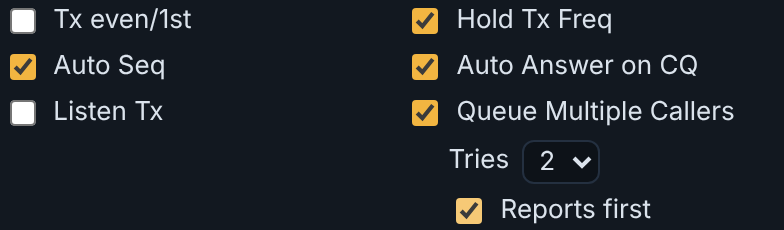
| Tx even/1st | Transmit in even periods (:00 and :30) instead of odd (:15 and :45). Set automatically when you call someone. |
| Hold Tx Freq | Keep your Tx frequency when you call a station (you answer on your own frequency). Untick to transmit on their frequency. |
| Auto Seq | Move to the next message automatically as replies arrive, and log at the end. |
| Auto Answer on CQ | After your CQ, answer the station that calls you, the strongest if several do (WSJT-X calls this Call 1st). Your Rx frequency moves to it. |
| Listen Tx | Hear your own transmit audio on this computer (volume in Audio settings). |
| Queue Multiple Callers | When several stations answer your CQ, work them one after another, strongest first, instead of going back to CQ after each QSO. Shown only while Auto Answer on CQ is ticked. See Queue Multiple Callers. |
| Tries | Shown under Queue Multiple Callers while it's ticked: how many times (1–3) a station is called without an answer before moving on. |
| Reports first | Shown under Tries: among stations calling in the same over, those that send a signal report instead of a grid are queued and worked ahead of the others, whatever their strength. |
8. Tx messages#
The six standard FT8 messages. The round button on the left (Next) marks the one that will be sent in your next Tx period; Now switches to that message immediately, even in the middle of a period. Every message can be edited (free text up to 13 characters).
| Example | Sent when | |
|---|---|---|
| Tx1 | K1ABC AK7MG CN87 | Calling a station: your grid |
| Tx2 | K1ABC AK7MG +04 | Answering a station that called your CQ, or your first call when Skip grid message is on |
| Tx3 | K1ABC AK7MG R+04 | Their report received, and yours sent back |
| Tx4 | K1ABC AK7MG RR73 | Reports confirmed (or RRR) |
| Tx5 | K1ABC AK7MG 73 | Signing off |
| Tx6 | CQ AK7MG CN87 | Calling CQ (with a modifier, e.g. CQ POTA, if set) |
9. Status bar#
On the left, what the client is doing (e.g. Monitoring RemoteTx audio at 44100 Hz, or an error). On the right: transmit state (Tx enabled · odd/2nd), the number of decodes in the last period, and how long decoding took.