
Operator: USB-CW-PTT adapter
The RemoteTx USB-CW-PTT adapter is the operator-side half of the RemoteTx CW keyer. It's a small adapter in a case, with a 3.5 mm jack for your paddle (or a straight key) and a USB connection to your computer or phone. When it's connected, your paddle contacts become the dit and dah paddles of the browser CW keyer.
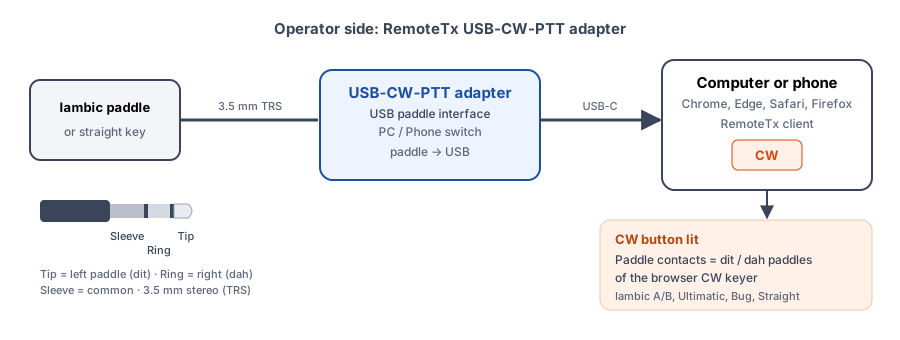
PC / Phone switch#
The adapter has a PC / Phone switch, so it works on any device that runs the RemoteTx client:
| Switch | The adapter acts as | Use it with |
|---|---|---|
| PC | A USB paddle device | Chrome or Edge on Windows, macOS, Linux or ChromeOS. The client must be opened over https. |
| Phone | A USB keyboard: left paddle sends the ← key, right paddle sends → | iPhone, iPad and Android phones and tablets, and browsers such as Safari and Firefox on a computer |
In Phone mode there's nothing to select or connect in the client: the arrow keys are the CW tab's paddle keys, so open the CW tab and tap inside it so it has keyboard focus, then send. A phone or tablet needs a USB port that accepts a keyboard, or a USB adapter for it.
On a computer with Chrome or Edge, use PC mode. The keyer then reads the paddle directly, so it keeps working even when the CW tab doesn't have keyboard focus, and the CW button on the Radio tab works as described below.
Connecting the adapter#
These steps are for PC mode with Chrome or Edge. For a phone, tablet, Safari or Firefox, see PC / Phone switch.
- Plug your paddle into the adapter's 3.5 mm jack. A stereo (TRS) plug is used for a paddle: tip = left paddle, ring = right paddle, sleeve = common.
- For a straight key, use the tip (left) contact, with the sleeve as common.
- Set the adapter's switch to PC, and plug it into a USB port on your computer. No driver is needed. The browser lists it as RemoteTx PTT-CW.
- Open the RemoteTx client in Chrome or Edge and connect to your radio.
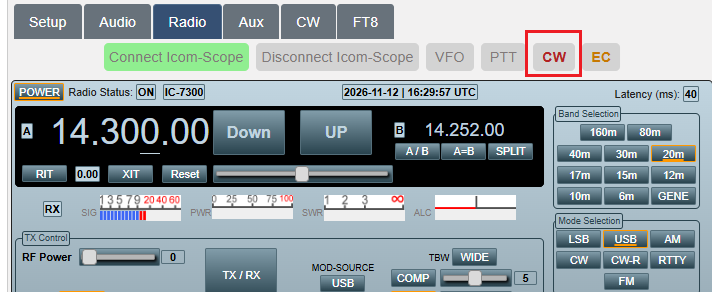
- Turn on the CW button on the Radio tab, as described below.
If your dits and dahs come out swapped, you don't need to rewire the plug. Tick Reverse paddles on the CW tab.
Turning on the CW button#
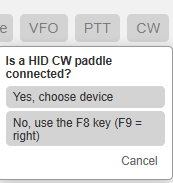
The CW button is in the row of buttons at the top of the Radio tab. Click it, and a small box asks Is a HID CW paddle connected?
| Answer | What happens |
|---|---|
| Yes, choose device | The browser's device chooser opens. Pick RemoteTx PTT-CW and click Connect. |
| No, use the F8 key (F9 = right) | No adapter is used. You can key with the keyboard instead (see below). |
| Cancel | Nothing changes. |
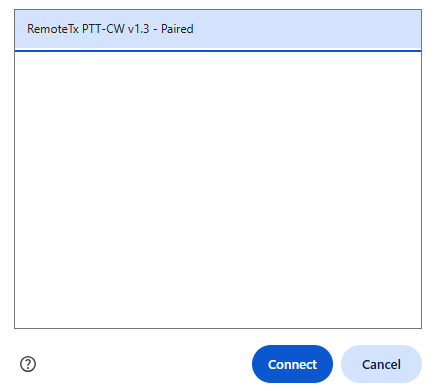
The browser asks for permission only the first time. After that, the adapter reconnects on its own whenever you open the client, and the CW button stays lit until you click it again to turn it off. If you unplug the adapter and plug it back in, it reattaches by itself. Both paddles are released when it's unplugged, so the radio can never be left keyed.
With CW lit:
- Your paddle drives the browser CW keyer.
- F8 = left paddle and F9 = right paddle, on the Radio tab as well as the CW tab.
- The CW tab shows HID paddle → keyer: ON and the device name, RemoteTx PTT-CW.
You can also connect the adapter from the CW tab itself, with Connect HID paddle.
Keyboard keys#
You can key with the keyboard with or without the adapter:
| Key | On the CW tab | On the Radio tab, CW lit |
|---|---|---|
| ← | Left paddle | (tunes the radio) |
| → | Right paddle | (tunes the radio) |
| F8 | Left paddle | Left paddle |
| F9 | Right paddle | Right paddle |
Click inside the CW tab first so it has keyboard focus.
Adapter utility#
The adapter can also run as a K3NG keyer, so it can work with contest and logging programs such as N1MM Logger+. The adapter utility below is used to set this up.
Documentation for K3NG keyer mode and N1MM integration is coming soon.