
FT8 to loggers
EasyConnect lets HRD Logbook, JTAlert, GridTracker, Log4OM, N1MM and other programs work with the RemoteTx FT8 tab exactly as they work with WSJT-X on the network. No serial ports or virtual cables are involved: the FT8 tab reaches EasyConnect over the radio link, and EasyConnect speaks the WSJT-X UDP protocol on its behalf.
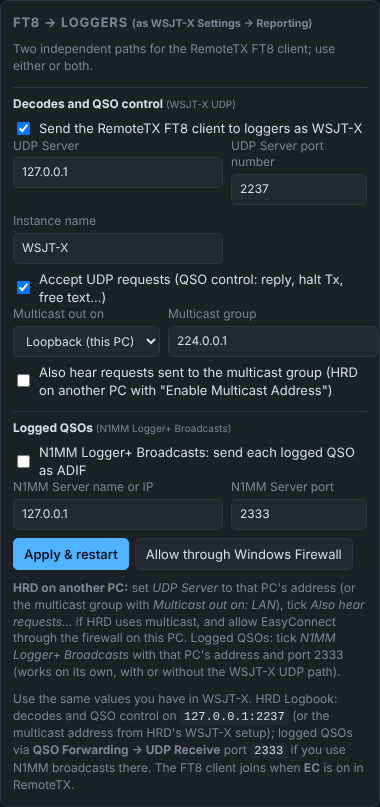
Two independent paths#
| Path | What it carries | Typical use |
|---|---|---|
| Decodes and QSO control (WSJT-X UDP) | Status, every decode, logged QSOs; and requests back from the logger (call a station, halt Tx…) | HRD Logbook's WSJT-X integration, JTAlert, GridTracker |
| Logged QSOs (N1MM Logger+ Broadcasts) | Each logged QSO as an ADIF record | HRD Logbook QSO Forwarding → UDP Receive, N1MM |
Use either or both, but don't send both paths into the same HRD log, or every QSO is logged twice.
What goes across#
Out to the logger: heartbeat, status (dial, mode, DX call and grid, report, Tx enabled / transmitting, Rx and Tx offsets, Tx message), every decode, clear, QSO Logged and Logged ADIF when you log a QSO in the FT8 tab, and close.
In from the logger (only with Accept UDP requests ticked):
| Request | Effect in the FT8 tab |
|---|---|
| Reply | Same as double-clicking that decode: calls the station. |
| Halt Tx | Stops transmitting (or, auto only, turns Enable Tx off). |
| Free Text | Puts text in Tx5, and optionally sends it. |
| Location | Sets your grid. |
| Highlight Callsign | Highlights a call in the decodes. |
| Configure | Mode, Rx offset, DX call and grid, generate messages. |
| Clear | Clears the decode lists. |
| Replay | EasyConnect resends the decodes it holds. |
Requests addressed to a different instance name are ignored, as WSJT-X does.
Settings#
These are the same as the Reporting tab in WSJT-X. Copy the values from a working WSJT-X setup.
| Setting | Default | What it does |
|---|---|---|
| Send the RemoteTX FT8 client to loggers as WSJT-X | On | Turns the WSJT-X UDP path on. |
| UDP Server | 127.0.0.1 | Where the logger listens. A multicast address such as 224.0.0.1 also works. |
| UDP Server port number | 2237 | The logger's WSJT-X port. |
| Instance name | WSJT-X | The name loggers see. |
| Accept UDP requests | On | Let the logger control the FT8 tab (reply, halt Tx, free text…). |
| Multicast out on | Loopback (this PC) | For a multicast UDP Server: Loopback for loggers on this PC, LAN for loggers on other PCs. |
| Multicast group / Also hear requests sent to the multicast group | 224.0.0.1 / Off | Tick this when HRD on another PC uses Enable Multicast Address: HRD sends its requests to the group. |
| N1MM Logger+ Broadcasts | Off | Send each logged QSO as ADIF. |
| N1MM Server name or IP / port | 127.0.0.1 / 2333 | Where to send them (HRD's QSO Forwarding → UDP Receive port). |
| Apply & restart | Save and restart. | |
| Allow through Windows Firewall | Windows only: add a firewall rule so loggers on other PCs can reach EasyConnect. Asks for administrator approval. |
HRD Logbook on the same PC#
- In HRD Logbook, set up WSJT-X integration on
127.0.0.1:2237as you would for WSJT-X. - In EasyConnect, leave Send the RemoteTX FT8 client to loggers as WSJT-X on, with UDP Server
127.0.0.1and port2237. - In RemoteTx, click EC on the Radio tab, then open the FT8 tab.
- EasyConnect's FT8 pill shows client linked and HRD's name. Decodes appear in HRD, and HRD's double-click calls the station in the FT8 tab.
To have HRD Logbook also follow the radio's frequency and mode (for logging other modes, or DX cluster QSYs), turn on the HRD Rig Control server as well. The two work side by side.
On the FT8 tab, a green Logger chip confirms the link. An amber Logger off chip means EasyConnect is linked but both paths are off.
HRD Logbook on another PC#
Decodes reach HRD as soon as UDP Server is that PC's address. For HRD's double-click replies to come back:
- HRD in multicast mode (HRD's WSJT-X setting Enable Multicast Address, e.g.
224.0.0.1:2237) sends its requests to the multicast group. Tick Also hear requests sent to the multicast group, or set UDP Server to the group itself with Multicast out on: LAN. - Windows Firewall on the EasyConnect PC must let the replies in: click Allow through Windows Firewall once, or allow RTx EasyConnect when Windows first asks.
- For logged QSOs, tick N1MM Logger+ Broadcasts with that PC's address and port
2333.
The log shows first UDP message from <address> via direct reply (or via multicast group) for each logger it hears, and ← Reply "…" → FT8 client for each double-click. If nothing appears, the packets aren't reaching this PC: check the firewall, and where HRD is sending.