
The window, part by part
The numbers match the screenshot.
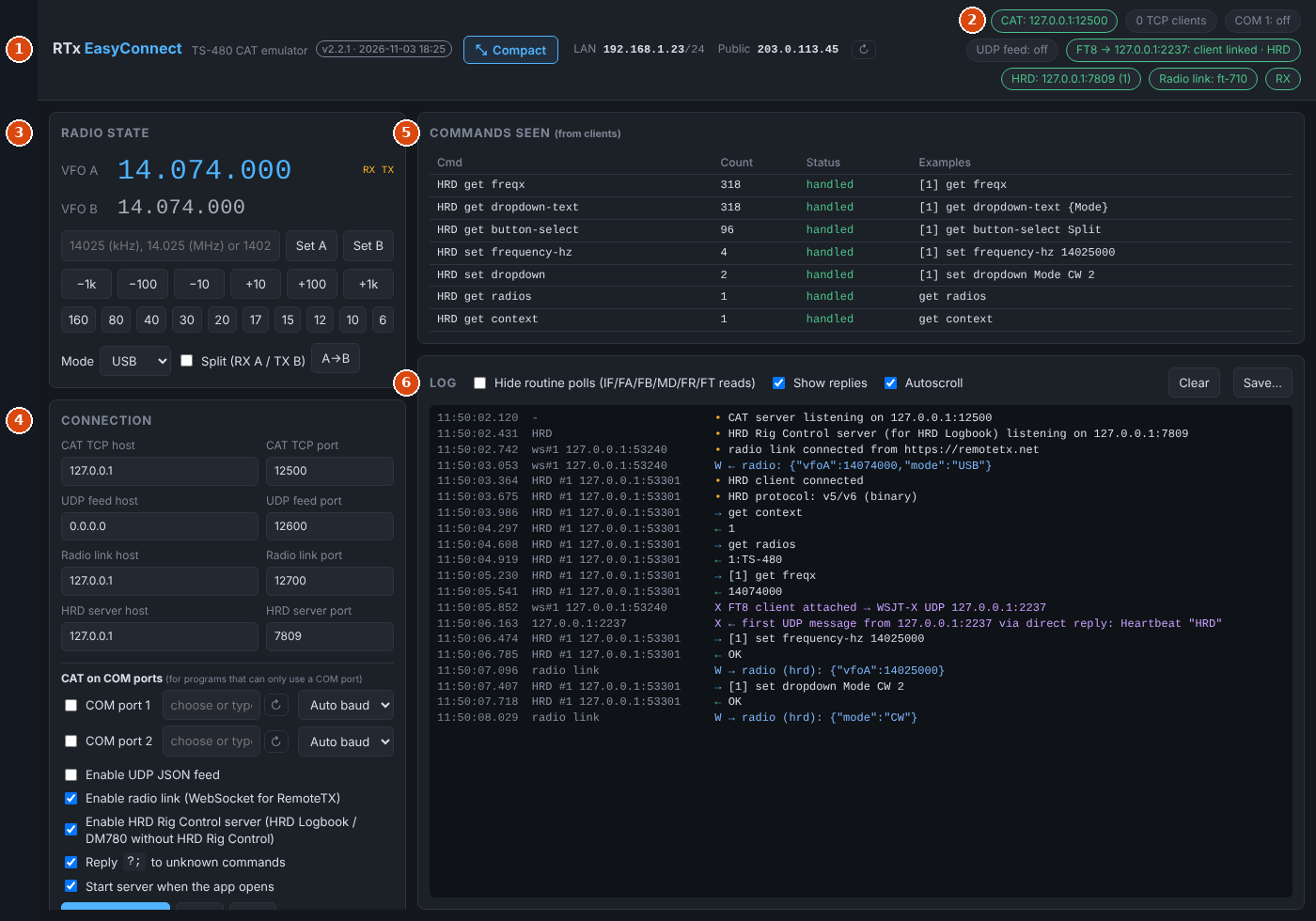
| # | Area | What it's for |
|---|---|---|
| 1 | Header | Version, compact view, and this computer's network addresses |
| 2 | Status pills | What's running and connected, at a glance |
| 3 | Radio state | The radio's frequency, mode and split, as loggers see them |
| 4 | Connection | Ports, COM ports, and which services are on |
| 5 | Commands seen | Every CAT command your loggers have used |
| 6 | Log | Everything that happens, line by line |
The FT8 → loggers card is below Connection; scroll down to see it.
1. Header#
| Item | What it shows |
|---|---|
| Version | e.g. v2.2.1 · 2026-11-03 18:25. Hover for the build details. |
| Compact / Full view | Switch between the full window and the compact view. Shortcut: Ctrl+M. |
| LAN | This computer's address on your local network, with its subnet (e.g. 192.168.1.23/24). Hover to see other adapters; click to copy. Refreshed every 30 s. |
| Public | Your network's address on the Internet. Click to copy. Refreshed every 5 minutes. |
| ↻ | Look both addresses up again. |
The LAN address is what you type into a logger on another computer.
Compact view#
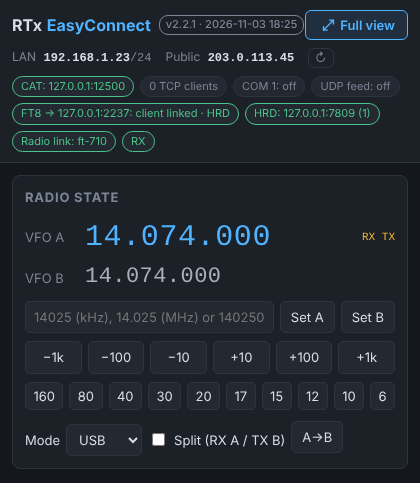
New in 2.2.1. Click Compact (or press Ctrl+M) to shrink EasyConnect to a narrow window with just the header, the status pills and the radio state. It's handy to keep beside your logger while you operate. Click Full view (or Ctrl+M again) to go back to the full window at its previous size. EasyConnect remembers which view you left it in.
2. Status pills#
Green = running or connected, grey = off or waiting.
| Pill | Meaning |
|---|---|
| CAT: 127.0.0.1:12500 / CAT: stopped | The TS-480 CAT server on TCP. |
| 1 TCP client | How many loggers are connected over TCP. |
| COM 1: COM10 19200 (auto) / COM 1: off | CAT on a COM port, with the speed it found. (finding speed…) until the program talks. A COM 2 pill appears when the second port is in use. |
| UDP feed: … / off | The JSON feed for scripts. |
| FT8 → 127.0.0.1:2237: client linked · HRD | FT8 to loggers is on. client linked = the RemoteTx FT8 tab is attached; the name at the end is the logger that answered (from its heartbeat). no client = waiting for the FT8 tab. |
| HRD: 127.0.0.1:7809 (1) / HRD: off | The HRD Rig Control server for HRD Logbook, with the number of connected clients. Green once HRD Logbook is connected. |
| Radio link: ft-710 | The RemoteTx page is linked (EC on), with the radio type. (waiting) = listening, no page linked yet. |
| RX / TX | Whether the radio is transmitting. |
3. Radio state#
What EasyConnect reports to your loggers. With the radio link on, it follows the real radio; without it, you can set it here to test a logger.
| Control | What it does |
|---|---|
| VFO A / VFO B | The two VFOs. RX / TX tags show which VFO receives and transmits. |
| Frequency box + Set A / Set B | Type 14025 (kHz), 14.025 (MHz) or 14025000 (Hz). Enter sets the receive VFO. |
| −1k … +1k | Step the receive VFO. |
| 160 … 6 | Jump to a band. |
| Mode | LSB, USB, CW, CW-R, FM, AM, FSK, FSK-R (TS-480 names). |
| Split (RX A / TX B) | Receive on A, transmit on B. |
| A→B | Copy VFO A to VFO B. |
Changes here go to the radio (when linked) and to every connected logger.
4. Connection#
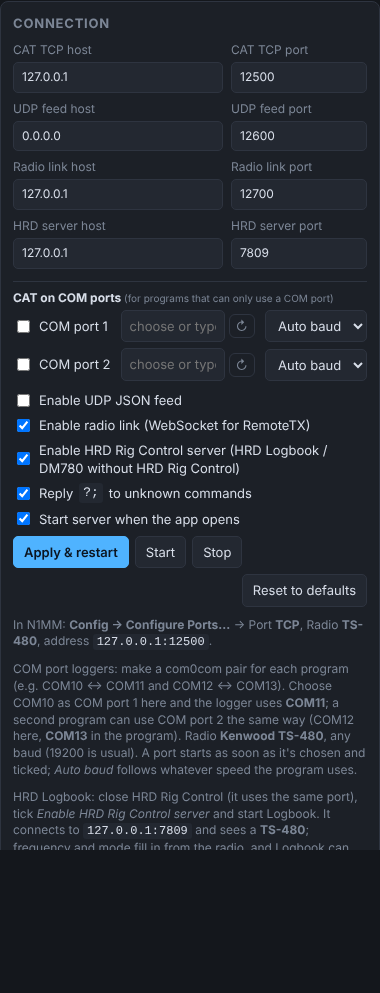
| Setting | Default | What it does |
|---|---|---|
| CAT TCP host / port | 127.0.0.1 / 12500 | Where loggers connect. 127.0.0.1 = this computer only; 0.0.0.0 = also from other computers. |
| UDP feed host / port | 0.0.0.0 / 12600 | A JSON feed that scripts can use to set the radio state. |
| Radio link host / port | 127.0.0.1 / 12700 | Where the RemoteTx page connects (EC button). |
| HRD server host / port | 127.0.0.1 / 7809 | Where HRD Logbook connects. See HRD Logbook rig control. |
| CAT on COM ports | Off | Up to two COM ports, for programs that can't use TCP. See COM-port programs. |
| Enable UDP JSON feed | Off | Turn the JSON feed on. |
| Enable radio link | On | Turn the RemoteTx link on. |
| Enable HRD Rig Control server | Off | Answer HRD Logbook and DM780 on the HRD port, instead of running HRD Rig Control. |
Reply ?; to unknown commands | On | Answer commands EasyConnect doesn't know with ?; (as a real TS-480 does). Untick to ignore them silently. |
| Start server when the app opens | On | Start everything automatically. |
| Apply & restart | Save and restart the servers with the new settings. | |
| Start / Stop | Start or stop the servers. | |
| Reset to defaults | Put every setting back as installed. The log is kept. |
The hints under the buttons repeat the addresses to type into N1MM, HRD Logbook and the RemoteTx EC button.
FT8 → loggers card#
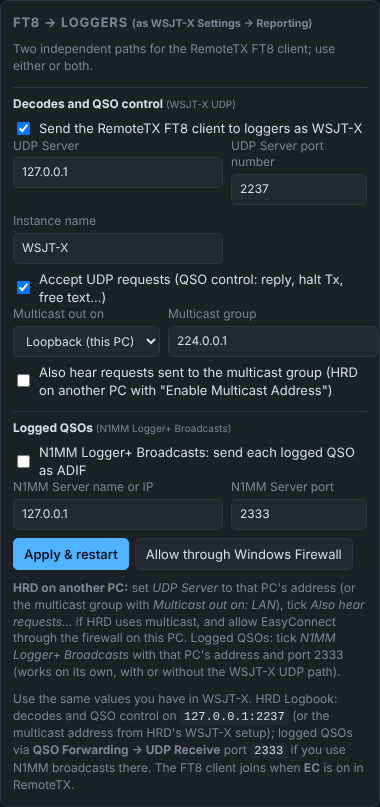
Settings for sending the RemoteTx FT8 tab to loggers. Explained in FT8 to loggers.
5. Commands seen#
A table of every command your loggers have sent (CAT commands, and HRD Logbook requests with an HRD prefix): how many times, whether EasyConnect handles it (handled) or not (UNKNOWN), and examples. Unknown commands are listed first.
It's a quick way to see exactly what a logger uses, and to spot a command a program needs that isn't supported yet.
6. Log#
Every event, newest at the bottom, with the time and the connection it came from.
| Symbol | Meaning |
|---|---|
| → | Command from a logger (TS-480 CAT or HRD) |
| ← | Reply to a logger |
| ⇐ | Pushed to a logger (auto-information, IF…;, when the radio changes) |
| W | Radio link: ← radio: = from the RemoteTx page, → radio: = to it |
| X | FT8 / WSJT-X UDP traffic |
| U | UDP JSON feed |
| • | Information (connected, disconnected, listening…) |
| ! | Error |
| Control | What it does |
|---|---|
| Hide routine polls | Hide the constant IF; FA; FB; MD; FR; FT; reads, and HRD Logbook's get … reads, so you see only the interesting traffic. |
| Show replies | Show or hide EasyConnect's answers. |
| Autoscroll | Keep the newest line in view. |
| Clear | Empty the log. |
| Save… | Save the summary and the full log to a text file, for troubleshooting. |