
CW Keyer overview
The RemoteTx CW keyer lets you send Morse with your own paddle, at your own desk, on a radio that may be hundreds of miles away. The keyer runs inside the RemoteTx web client. It produces a clean, precisely timed CW tone, which travels to the station over the same audio link that carries your voice. At the station, a small adapter hears that tone and closes the radio's key line in step with it.
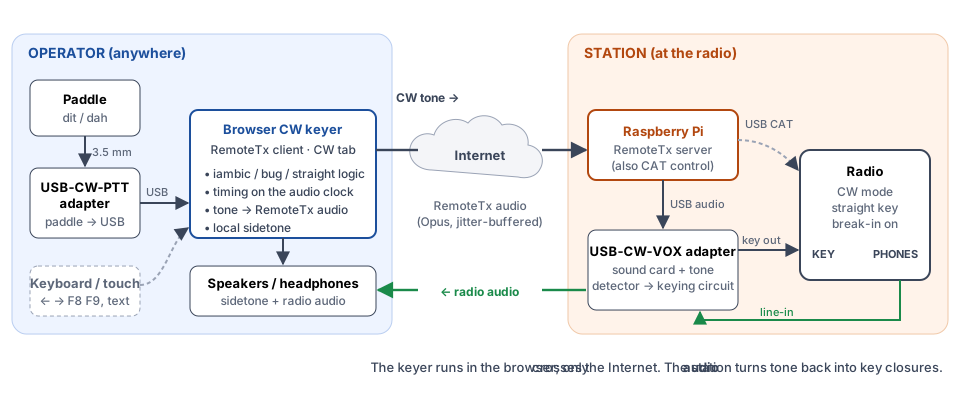
What you need#
| Item | Notes | |
|---|---|---|
| Operator | Computer with Chrome or Edge, or phone with USB adapter | CW can be sent with a USB connected paddle, keyboard, or macros. |
| RemoteTx USB-CW-PTT adapter | Optional. Connects a paddle or straight key. See USB-CW-PTT adapter. | |
| Station | Raspberry Pi running RemoteTx | The usual RemoteTx station setup. |
| RemoteTx USB-CW-VOX adapter | Plugs into the Pi; its key output goes to the radio's KEY jack. See Station: USB-CW-VOX adapter. | |
| Radio with a KEY jack | Set to straight key, CW mode, break-in on. |
Quick start#
At the station, connect the USB-CW-VOX adapter: USB to the Pi, key output to the radio's KEY jack, radio PHONES to the adapter's line in. Set the radio to CW, straight key, break-in on.
At your desk, plug your paddle into the USB-CW-PTT adapter and the adapter into your computer.
Open the RemoteTx client in Chrome or Edge and connect to your radio as usual.
On the Audio tab, check that the USB-CW-VOX adapter is selected as the Sound Card and click Start/Restart Audio to activate it (see Levels).
On the Radio tab, click CW and answer Yes, choose device. In the browser's device list, pick RemoteTx PTT-CW and click Connect.
Open the CW tab. Tick Use radio key input (Mute MIC). Leave Rise/fall to radio unticked.
Your microphone is muted while this is tickedUse radio key input (Mute MIC) takes your microphone out of the audio sent to the radio. Untick it on the CW tab before you go back to SSB, FM or AM, or the station won't hear your voice, even though you're transmitting.
The setting is remembered, so it's still on the next time you open RemoteTx, until you untick it.
Set Speed, Tone and Sidetone to taste, then send. The KEY lamp lights with each element, and the Sent (decoded) box shows what you sent.
The browser needs one click or key press on the page before it may play sound. If the status chip shows Audio off, click Start audio.