Solution Overview:
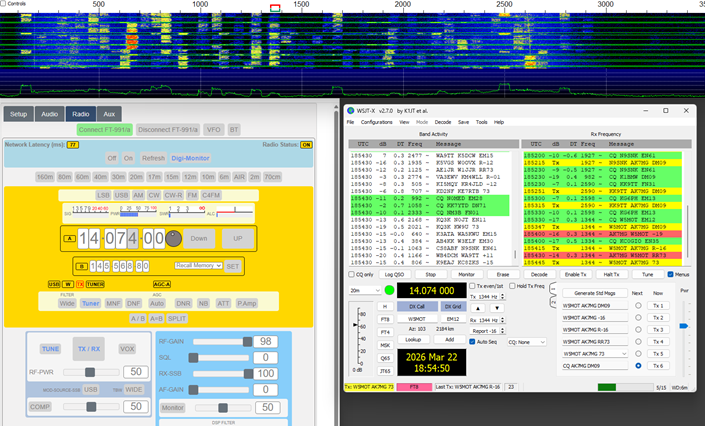
With the RemoteTx FT-8 solution approach, the WSJT-X software is run on the PC at the operator location. Radio control and audio streaming all goes through the RemoteTx web browser to the RTx Raspberry Pi at the remote location that the radio is attached to.
- Serial control of the radio is routed through the RemoteTx web browser interface. Radio control is accomplished via the RS-232 CAT port in the back of the FT-991a in conjunction with the RemoteTx WebSerial function in the browser and windows serial bridging software via COM0COM. The control path looks like this:
WSJT-X <-> COM0COM <-> RTx Browser WebSerial <-> RTx Raspberry Pi/USB <-> USB/RS-232 Adapter <-> RS-232 CAT Port on back of FT-991a. - Audio is also routed through the browser using an audio bridging software, VB-Audio Cable.
Below are step by step setup directions with screenshots using a Windows 11 PC.
Required Materials:
- RS-232/USB adapter similar to:
https://www.amazon.com/dp/B0BKJKYCJK - COM0COM software downloaded from RemoteTx:
https://remotetx.s3-us-west-1.amazonaws.com/com0com-2.2.2.0-x64-fre-signed.zip - VB-Audio Cable A&B software acquired from:
https://vb-audio.com/Cable/#DownloadCable
Configure Radio Control.
WSJT-X will be configured to control the FT-991a via CAT commands using the RemoteTx WebSerial feature by adding a RS-232 serial to USB adapter to the GPS/CAT port in the back and plugging it into the RemoteTx RPi. An example serial-USB adapter that works is: https://www.amazon.com/dp/B0BKJKYCJK
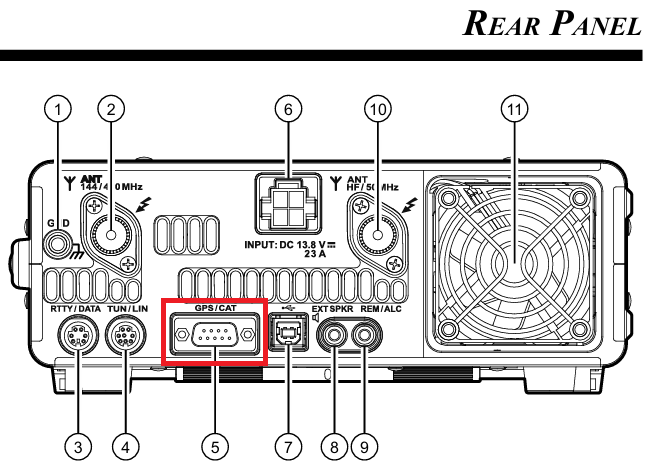
Additionally, a Windows Com port bridging utility software, com0com will be installed that will allow WSJT-X to communicate with the RemoteTx web browser.
CONFIGURE WSJT-X SERIAL CONTROL OF FT-991A:
- PLUG RS-232/USB ADAPTER INTO GPS/CAT PORT IN BACK OF RADIO AND USB PORT ON RPi.
- DOWNLOAD COM0COM
Download and install com0com from this RemoteTx download link:
https://remotetx.s3-us-west-1.amazonaws.com/com0com-2.2.2.0-x64-fre-signed.zip - INSTALL AND START COM0COM
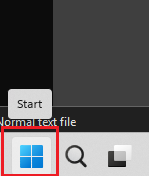
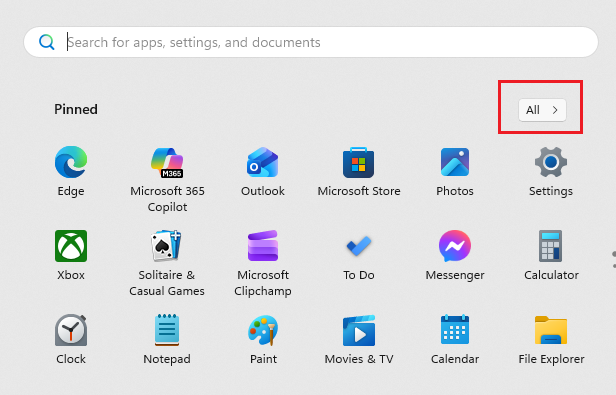
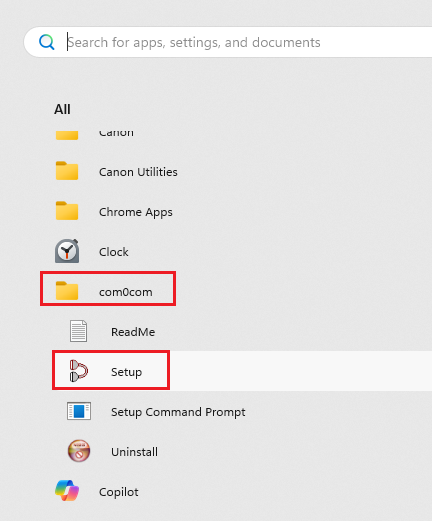
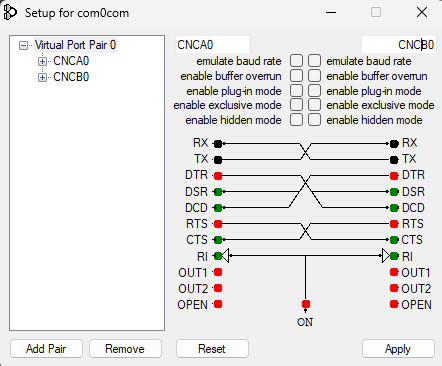
Once the com0com install is complete, start the com0com setup program by clicking on the windows start button, click on All, then scroll down and find the com0com folder that has the setup icon.
- RENAME COM PORTS
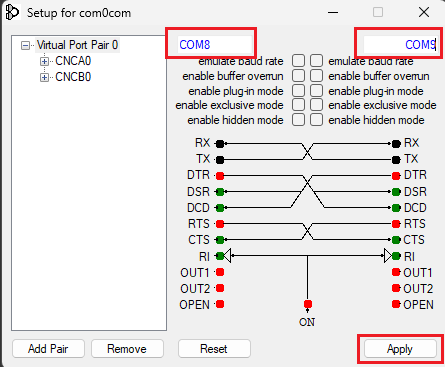
Change CNCA0 and CNCB0 to COM8 AND COM9, then click ‘Apply’.
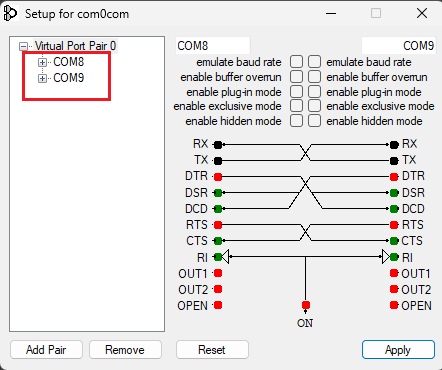
com0com is now configured and ready to use. - UPDATE RPi VERSION – IF NECESSARY
Log in to your RemoteTx web interface and under the Setup tab check what the version is at the bottom of the screen. It needs to be Version 1.5.3 or higher. If it needs to be updated, click on the Update button, wait about 10 seconds and then reboot the RPi.
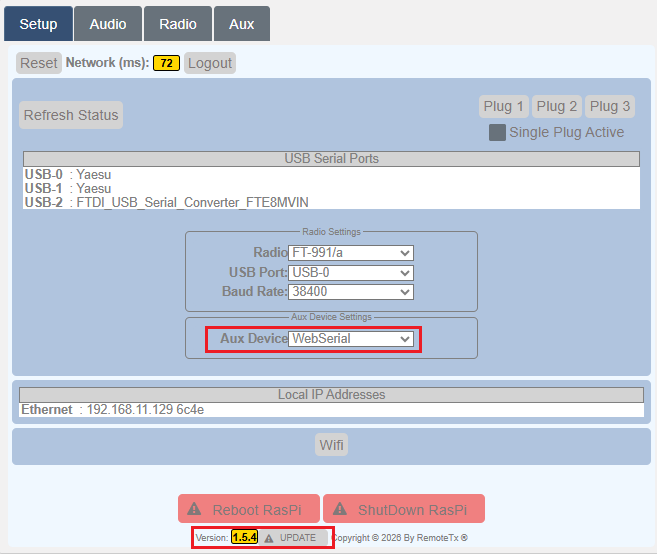
- TURN ON RADIO AND CONNECT TO IT WITH RemoteTx WEB INTERFACE
Log in to your RemoteTx radio web interface and turn on the radio and connect to it.
Make sure that Mod-Source-SSB is set to USB and COMP is off. Also, click the Digi-Monitor button so it turns blue.
This allows the interface to update frequency and Tx/Rx state when WSJT-X controls it.
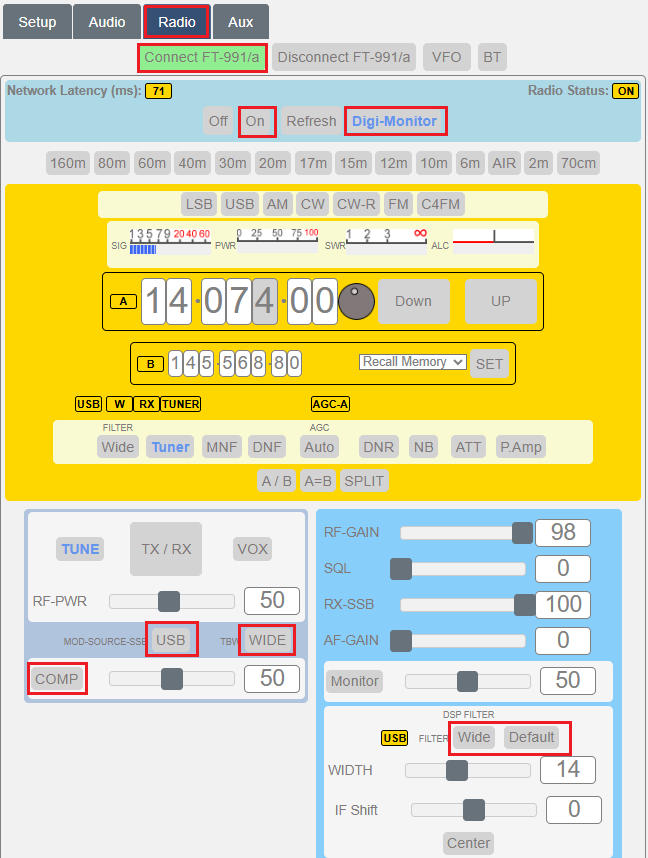
- ACTIVATE WEB SERIAL CONNECTION ON USB-2 PORT
Click on the Setup tab, and under the Aux Device menu, select WebSerial.
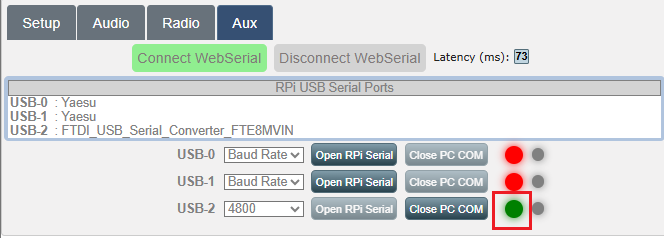
Click on the Aux Tab, Click on the Green ‘Connect WebSerial’ button and then select a baud rate of 4800 in the USB-2 Menu.
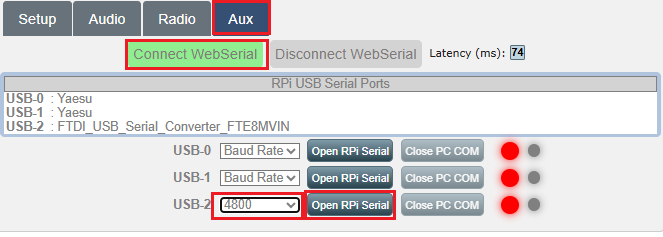
Then click on the ‘Open RPi Serial’ button and choose COM8 and click the ‘Connect’ button.
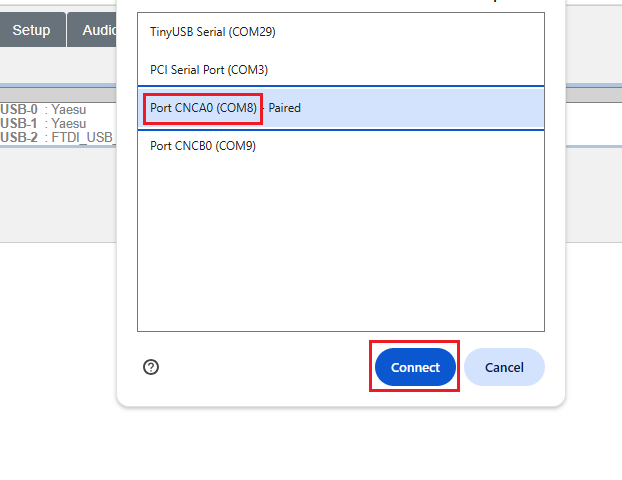
The Activity indicator for USB-2 should now turn to Green from Red.
- CONFIGURE AND TEST WSJT-X CONNECTION TO RADIO.
Open the WSJT-X settings panel and click on the ‘Radio’ tab and then configure the following settings:
Rig: Yaesu FT-991
Serial Port: COM9
Baud Rate: 4800
PTT Method: CAT
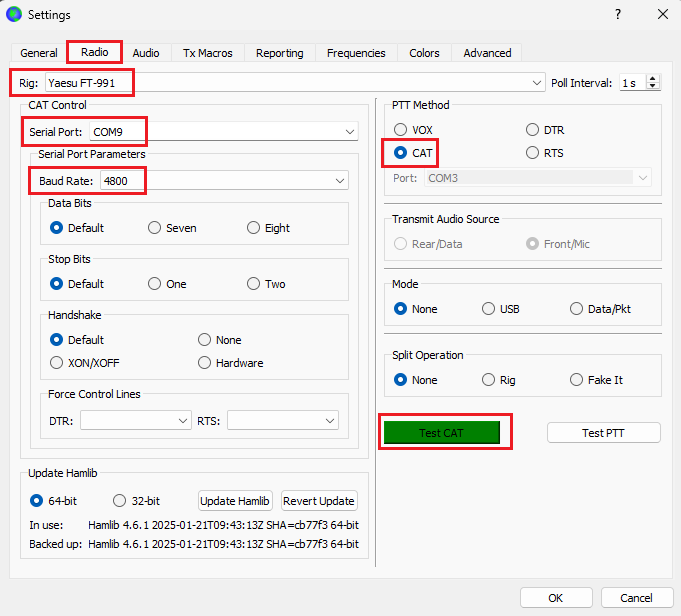
You can also click the Test CAT button to test the connection. It should turn Green after several seconds.
WSJT-X now has the necessary control of the radio. Click OK to close the Settings panel and you should see WSJT-X display the current radio frequency.
CONFIGURE AUDIO BRIDGING BETWEEN RemoteTx BROWSER AND WSJT-X:
Audio bridging requires the purchase and download of an inexpensive audio utility, ‘VB-Audio Cable A&B’.
- DOWNLOAD AND INSTALL ‘VB-Audio Cable A&B’.
The download link is: https://vb-audio.com/Cable/#DownloadCable
The cost is about $15. - CONFIGURE SOUND CONTROL PANEL PLAYBACK TAB
Open the System Sound Control Panel, by typing ‘Change System Sounds‘ in the Windows Search Interface.
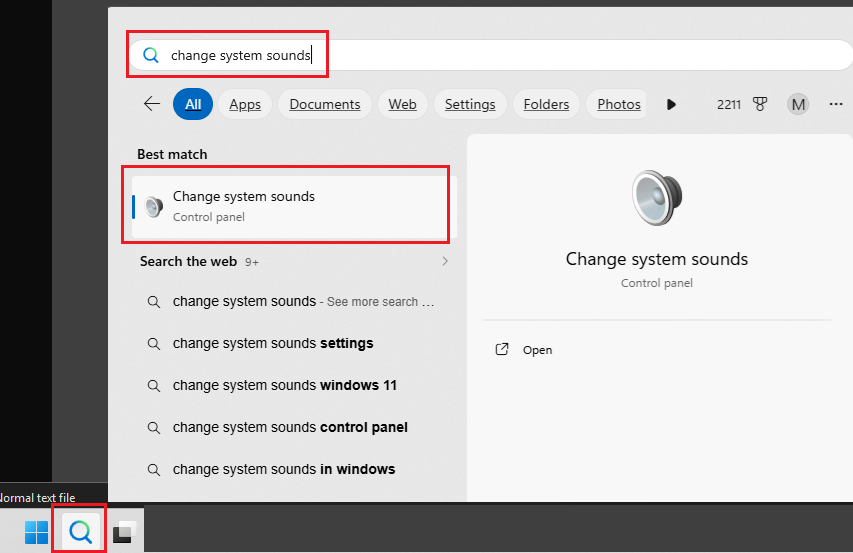
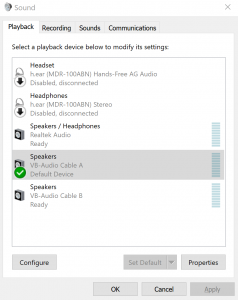
Then, click on the ‘Playback’ tab.
With a ‘right mouse click’ make the ‘Speakers-VB-Audio-Cable-A’ both the ‘Default Device’ and the ‘Default Communications Device’.
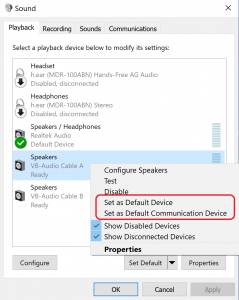
It should look like below when completed.
- CONFIGURE SOUND CONTROL PANEL RECORDING TAB
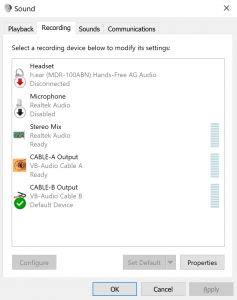
Click on the ‘Recording’ tab and then with a ‘Right Mouse Click’ disable everything except ‘Stereo Mix’ (if it exists) and Cable-A Output and Cable-B Output.
Then, with a ‘right mouse click’ make ‘Cable-B Output’ both the ‘Default Device’ and the ‘Default Communications Device’.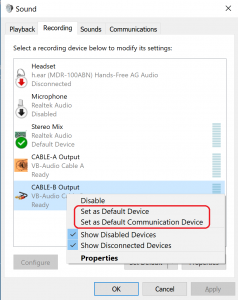
It should look like this:
- CONFIGURE CABLE-A SO YOU CAN ALSO HEAR RX AUDIO IN PC SPEAKERS.
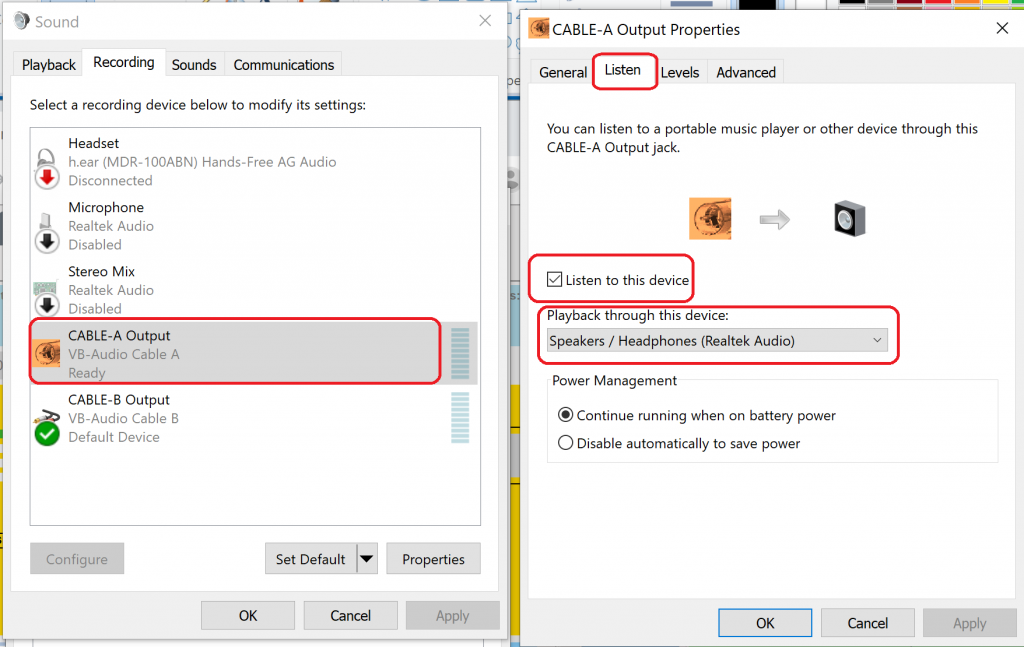
Double click on ‘CABLE-A Output’ to open the ‘CABLE-A Output Properties’ window and then select the ‘Listen’ tab.
Check the ‘Listen to this device’ and select your speakers as the ‘Play through this device’ choice.
This will make it so you hear the received radio audio that is also going to WSJT-X.
- CONFIGURE CABLE-B SO YOU CAN ALSO HEAR TX AUDIO IN PS SPEAKERS.
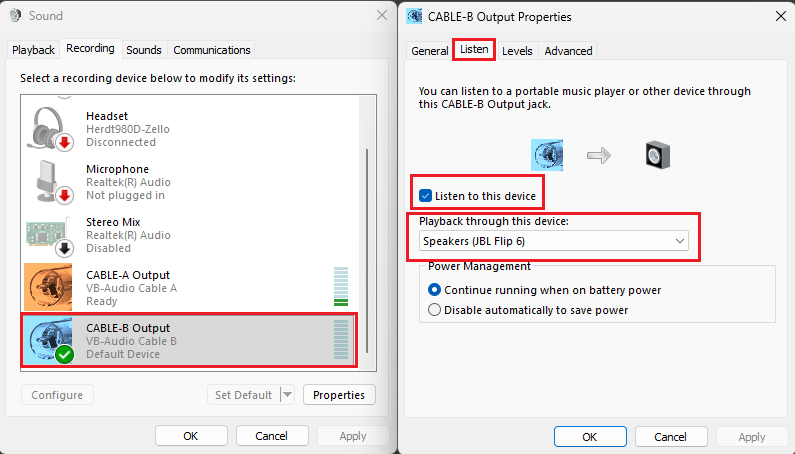
Double click on ‘CABLE-B Output’ to open the ‘CABLE-B Output Properties’ window and then select the ‘Listen’ tab.
Check the ‘Listen to this device’ and select your speakers as the ‘Play through this device’ choice.
This will make it so you hear your transmitted radio audio that WSJT-X is emitting.
- CONFIGURE WSJT-X AUDIO SETTINGS.
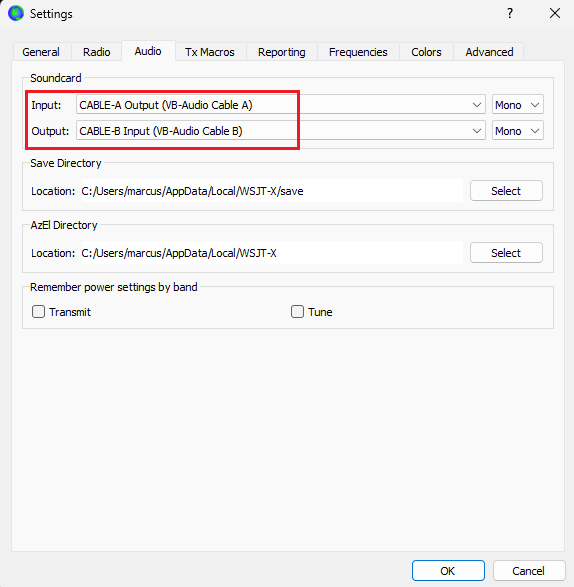
Open the WSJT-X settings panel and click on the ‘Audio’ tab.
Set Input and Output like this:
Input: to ‘CABLE-A Output (VB-Audio Cable A)’
Output: to ‘CABLE-B Input (VB-Audio Cable B)’
Audio bridging setup is now complete.
Final startup and operation of FT8:
- Close both WSJT-X and logout of the RemoteTx browser and close all browser windows.
(This is so that when the browser is re-launched it will apply the sound card changes that were made.) - Open a new browser window and log in to RemoteTx, and click on the radio tab and connect to your radio.
Remember to click the ‘Digi-Monitor’ button after you connect. - Click on the Aux tab, click and connect to the WebSerial interface, set USB-2 to 4800 baud and open the port, choosing COM8.
- Start WSJT-X and you should see it connect and read the correct radio frequency and you should see it start decoding FT8 traffic.
Audio Adjustment Notes:
- TX Audio level should be adjusted, so you are seeing full power out, but very minimal ALC activity.
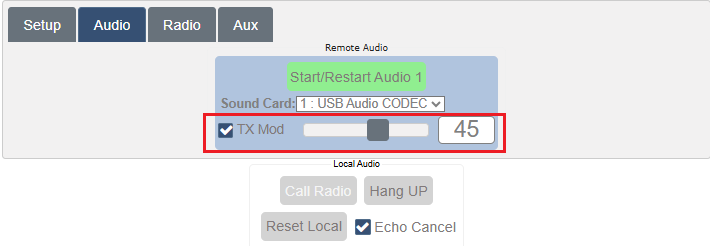
The 2 places you can make this adjustment are with the WSJT-X Pwr slider level at the right of the WSJT-X panel and under the RemoteTx Web browser audio tab Tx, slider.
A good first value for the RemoteTx Audio tab is 45, then adjust as needed from there.
(You may find if you switch back to operating SSB voice, you will need to turn this value back up again to around 70.)
You can click the Tune button in WSJT-X to put the radio in transmit, then adjust tx levels while watching the PWR and ALC values in the web browser.
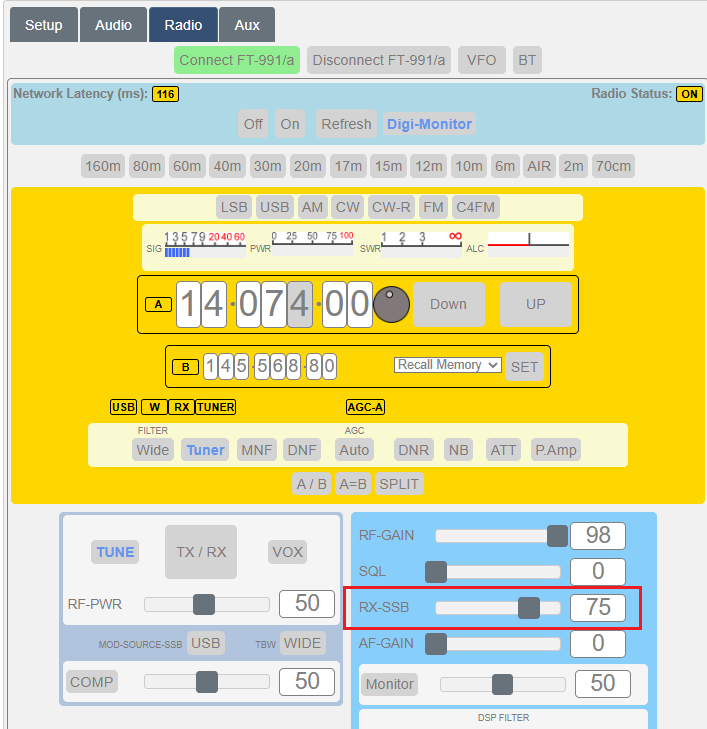
Generally, set the web browser Audio tab to 45, then fine tune with WSJT-X Tx level. - RX Audio can be adjusted with RemoteTx web browser radio control interface with the ‘RX-SSB’ level control.
A level of 75 is a good starting place.
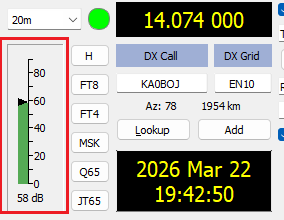
Generally, this should be set so that you get a green level in WSJT-X of 60 dB or a little higher.
FINAL RESULT: